How to Direct AI Voices on iPhone: Presets and Custom Instructions
You are preparing a short podcast, a learning conversation or a story with two characters. The script is ready, but you want the speakers to differ in more than just their voices: one should explain things calmly and confidently, while the other responds with energy and curiosity. How do you communicate that idea to AI voices?
In Dialogue Studio in Tau34 on iPhone, you can describe each speaker’s role and delivery, set the overall situation or choose a ready-made preset. If you start with AI Dialogue Writer, it can prepare the directions to suit the conversation topic. This guide uses a food-ordering example to explain these approaches and show how the same voices can be directed toward different performances.
If you have not created an audio dialogue yet, start with the guide to creating a dialogue with two AI voices. Here, we focus on the next step: directing the performance.
A voice and its delivery are different settings
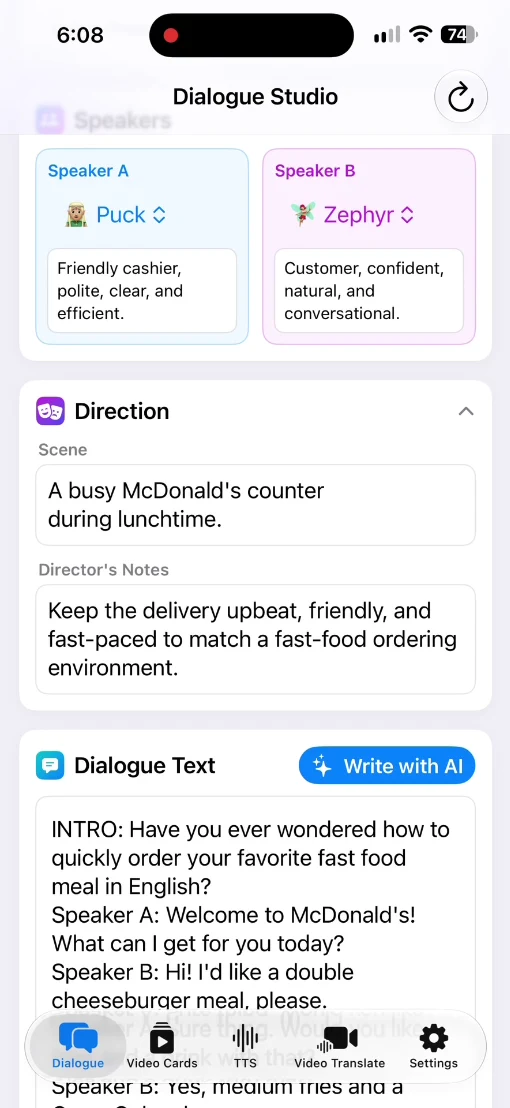
In Speakers, choose the voices for Speaker A and Speaker B. Our example uses Puck and Zephyr.
Below each voice is a Voice profile field. Use it to describe that character’s role and way of speaking. For example, one speaker could be a polite customer and the other a friendly employee.
Direction sets the overall context of the conversation. Expand it to see Scene, which describes the situation, and Director’s Notes, which provides performance instructions. These fields guide the overall delivery, while the speaker profiles distinguish the characters.
AI Writer can prepare directions along with the dialogue
When you start with Write with AI, you do not have to invent all the voice characteristics yourself. AI Dialogue Writer chooses them to suit the topic and fills in the relevant fields along with the conversation text.
The recording uses the topic of ordering food at McDonald’s. In the prepared dialogue shown at the start, Speaker A is a friendly, polite cashier, while Speaker B is a confident customer with a natural, conversational delivery. Scene describes a busy counter at lunchtime, and Director’s Notes calls for an upbeat, friendly performance.
You can open and read these directions. If you want a different interpretation of the scene, edit them before generating the audio.
A ready-made preset offers a different delivery
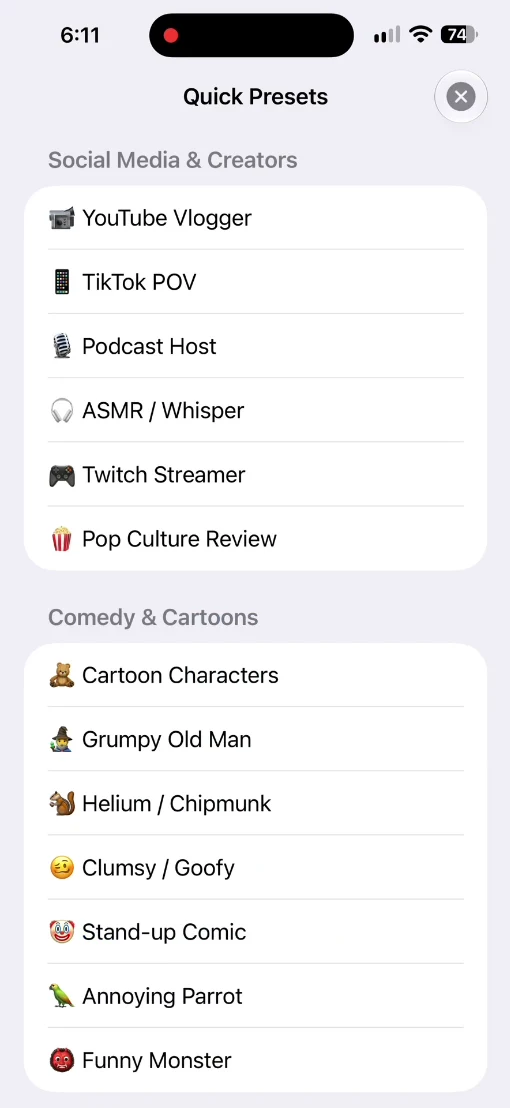
If you already have a script, paste it into Dialogue Text. Then open Quick Presets and choose an option that fits your project.
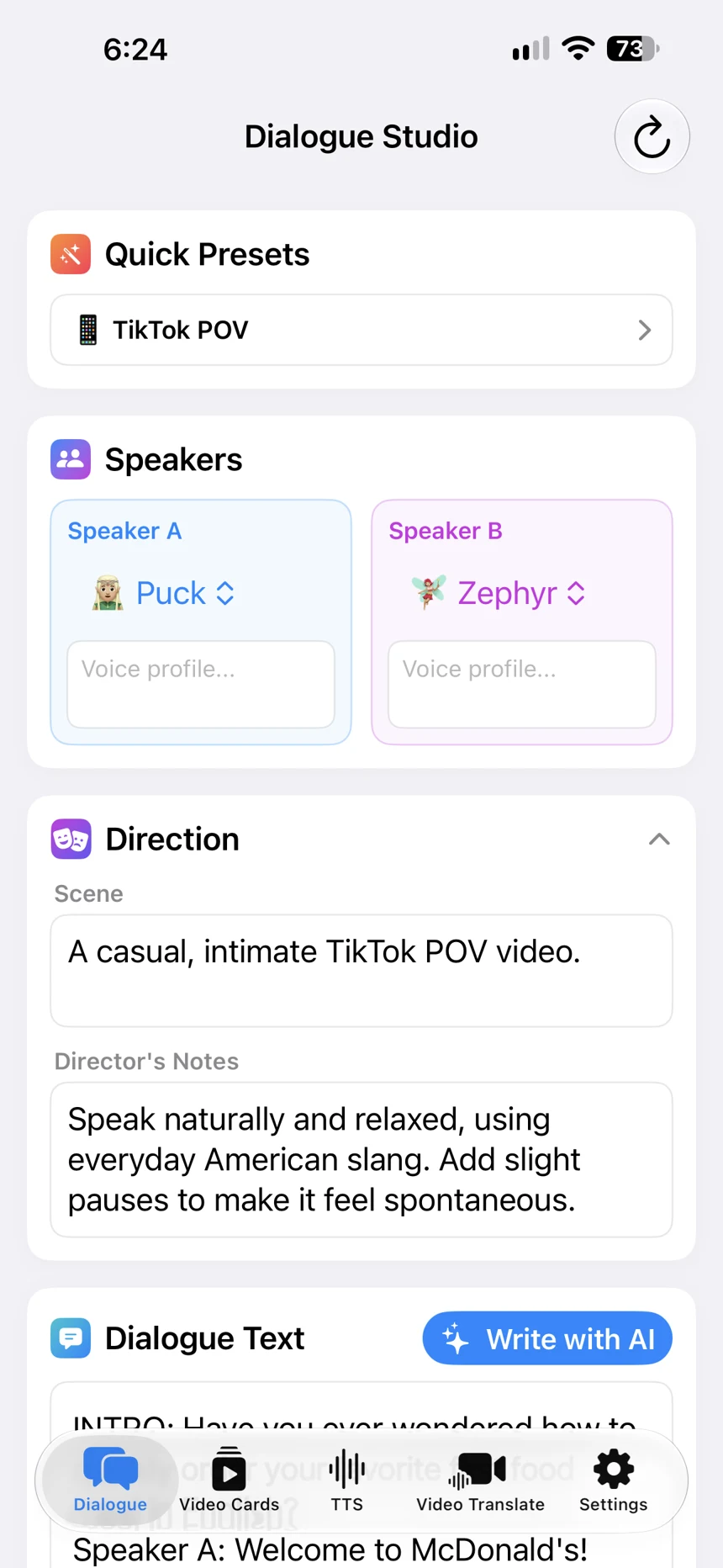
In the recording, TikTok POV is selected after the first audio version. The voice names remain Puck and Zephyr, while the overall directions change: Scene describes a casual TikTok POV video, and Director’s Notes calls for natural, relaxed speech with slight pauses.
With this preset, the Voice profile fields are empty in the recording. Treat a preset as a starting point: after selecting one, check which directions it has supplied and add your own if needed.
The menu also shows YouTube Vlogger, Podcast Host, ASMR / Whisper and Cartoon Characters. You do not need to explore the entire list to try the feature. Start with a format close to what you want to make.
Write your own instructions for each character
You do not have to use a preset. You can describe the situation, the overall character of the conversation and each speaker yourself. Write the instructions in the language you are comfortable using.
For example, for a learning conversation at a café counter:
- Scene: “A café counter at lunchtime.”
- Director’s Notes: “An everyday, polite conversation, without a theatrical delivery.”
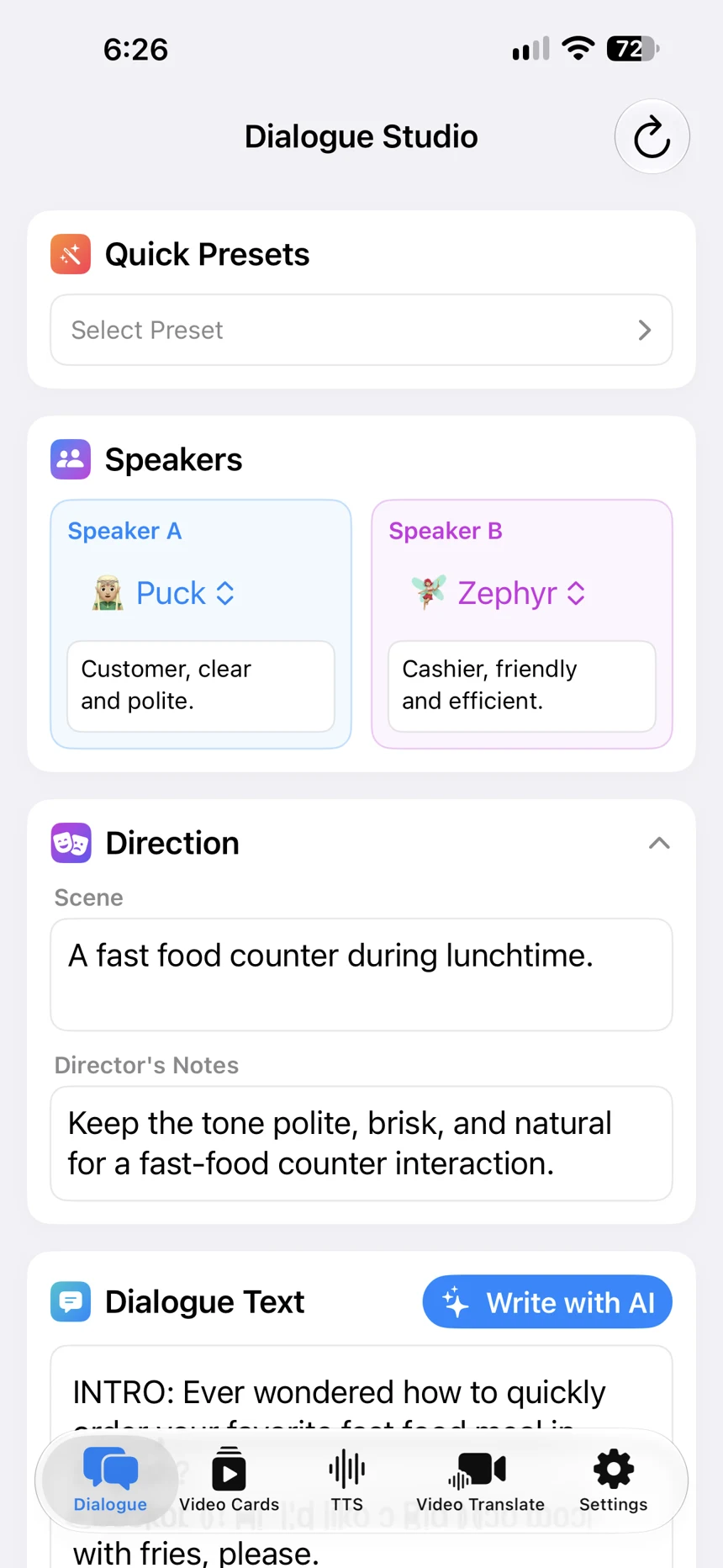
- Speaker A — Voice profile: “Customer: clear and polite.”
- Speaker B — Voice profile: “Cashier: friendly and efficient.”
These are suggested instructions, not the exact settings behind the demonstration audio. The supplied screenshot shows the customer and cashier profiles in this order; at the start of the screen recording, their roles are the other way around. In your own scene, match each role to the corresponding lines in Dialogue Text.
Generate and compare the delivery
Once the settings are ready, tap Generate, then play the audio in Result. To compare performances, keep the same script and selected voices, change the directions and generate another version.
Listen to the two supplied recordings below: the version with AI Writer’s directions and the version with TikTok POV. Several directions change together, so this example demonstrates two approaches to directing the scene rather than the effect of a single field.
Turn the audio dialogue into a finished video
Once you have the delivery you want, you can use the audio on its own or turn the dialogue into a video podcast with Create Video. Choose a vertical or horizontal format. The finished video displays speaker portraits, highlights the active speaker and highlights the spoken words in sync with the audio. Follow the steps in the guide to creating a video from an AI dialogue.
If you also need individual words or phrases with translations for the same learning topic, use Video Cards. This is a separate workflow for creating bilingual video cards with audio. For example, a conversation at a counter could be paired with food vocabulary. See the guide to bilingual video cards. The voice settings described in this article apply to Dialogue Studio.
Where this can help
For a podcast, give the hosts different roles. For a story, describe the characters’ personalities. For a learning dialogue, set a specific everyday situation. For a review, describe how the presenter addresses the listener: explaining calmly or sharing impressions with enthusiasm.
Start with one scene and a few clear instructions. They guide the performance, but do not guarantee exactly the same intonation every time you generate audio.
This guide covers Dialogue Studio. Text to Speech is a separate mode; the presets and written voice profiles described here do not apply to it.