How to Make Bilingual Vocabulary Videos for Reels and Shorts on iPhone
Five words on one topic, translations and voices in two languages: that is enough to build a short vocabulary video for Instagram Reels, YouTube Shorts or TikTok. You can use the format for a language-learning page, a teacher’s practice activity or a series of videos for your own revision.
In Tau34 AI Video & Voice Studio, Bilingual Video Cards creates this kind of mini-lesson on iPhone. Choose two languages and enter a topic or your own words. Tau34 generates five cards with translations and AI voiceover, then turns the set into a video.
What your viewers see and hear
The finished video moves through the cards one by one. Each card shows the original word or phrase and its translation, with AI voiceover in both languages. Viewers can see the spelling, hear the pronunciation and connect the expression with its meaning.
Our finished example, 5 Tableware Essentials, teaches English words with Spanish translations:
- Cup — La taza
- Plate — El plato
- Fork — El tenedor
- Spoon — La cuchara
- Knife — El cuchillo
The exported example is a short vertical video. A cup, plate and cutlery appear alongside the words, while the cards change in sequence. The Spanish words include their articles, as shown in the actual result.
Who can use bilingual vocabulary videos?
Language-content creators. Make themed vocabulary videos without filming yourself or recording your own voice. The words, translations and voiceover are the content of the video.
Teachers and tutors. Use a small set as lesson material or send it to students to revisit familiar vocabulary.
Independent learners. Create videos around topics you need and return to the words in your own time.
English and Spanish are one example. Bilingual Video Cards supports 15 languages, from which you can select a pair for your material.
How to create your bilingual video
1. Open Bilingual Video Cards and choose your languages
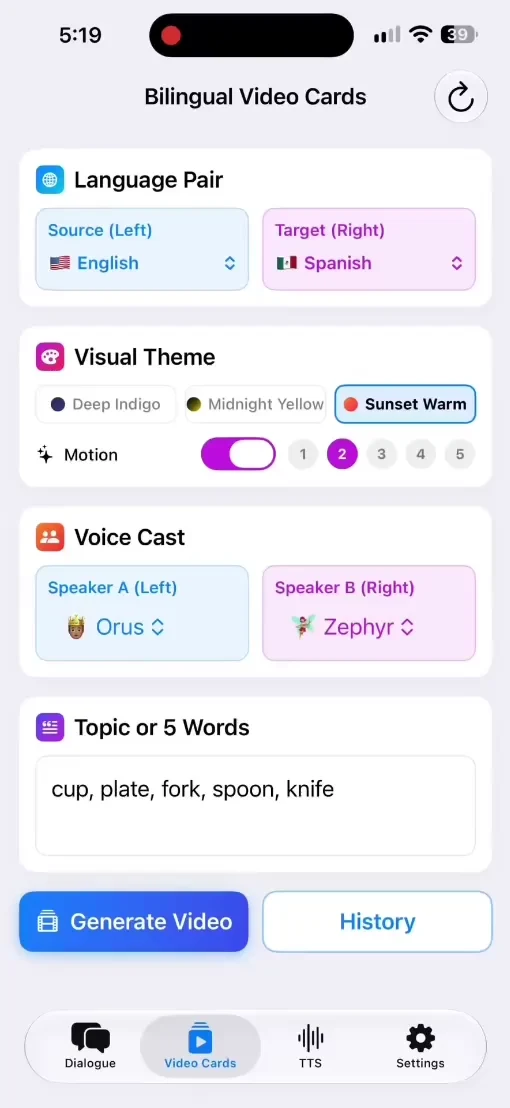
Open Bilingual Video Cards and find Language Pair. Source (Left) selects the source language; Target (Right) selects the translation language.
For this example, choose English on the left and Spanish on the right.
2. Choose the appearance and voices
Use Visual Theme to choose the card theme. In Voice Cast, Speaker A (Left) and Speaker B (Right) select the voices for the two sides.
The supplied recording uses Sunset Warm, with Motion enabled, Orus for the left voice and Zephyr for the right voice. These are the settings used for this example.
3. Enter a topic or five words
In Topic or 5 Words, enter a topic or your own list of five words. To make the tableware set shown here, the recording uses:
cup, plate, fork, spoon, knife
You can also start with a topic, such as Weather, rather than supplying your own list. Tau34 creates a set around the chosen topic.
4. Generate and play the video
Tap Generate Video. Tau34 prepares the bilingual cards, voiceover and video. The recording shows a progress message while generation runs, followed by Video is ready! and the completed set.
Play the video in Result Preview to see the five cards and hear their voiceover. The screen recording below shows the settings, generation and playback for the same tableware example.
Watch the creation process in Tau34
5. Save your video
Tap Save to Camera Roll to save the finished video to your iPhone’s photo library. You can then use the file in a Reels, Shorts or TikTok post, or send it to your students.
Create your first bilingual vocabulary video with Tau34 on iPhone.
Turn one video into a series
A series can have a simple shared idea: five everyday English words with Spanish translations. One episode covers tableware, the next covers shopping, followed by weather or travel.
Each video has its own topic, so viewers know what vocabulary they will hear. You have a repeatable content format without needing a new concept for every post.
Can I make videos with phrases?
Yes. Bilingual Video Cards works with vocabulary and phrases, so you can alternate word sets with useful everyday expressions.
If you want a back-and-forth conversation between two characters, use Dialogue Studio. Follow the separate guide to making a short AI video podcast from a two-voice dialogue.