How to Make a Short AI Video Podcast on iPhone
Want to make a short conversation people can listen to and follow on screen? With Tau34 AI Video & Voice Studio, you can turn a generated two-voice dialogue into a video on your iPhone. Two AI voices take turns speaking, their portraits show who is talking, and the spoken words light up in sync with the audio.
That format can become a short podcast-style discussion, a language-learning conversation, or a story told through two characters. The script gives it a purpose; the video gives listeners a way to follow the words as they hear them.
This guide covers the video stage. To write the dialogue, choose the two voices and generate the audio first, follow How to Create a Two-Voice AI Dialogue on iPhone.
What can you make with a two-voice dialogue?
A short podcast or explainer
One speaker asks questions and the other answers, or two hosts discuss one idea. A short exchange can introduce a topic, explain a useful concept or give two points of view. Once the audio is ready, you can give the same conversation a video version with its words on screen.
A language-learning conversation
An everyday situation gives learners something specific to listen for: ordering food, asking for directions or making weekend plans. Two distinct voices separate the roles. In the video, the changing text and highlighted words let viewers connect what they hear with the written phrase.
Our finished example, Ordering Dinner Together, follows two people deciding between pasta and a burger. It works as a small listening-practice episode: a familiar situation, a back-and-forth conversation and words viewers can follow as they are spoken.
The demonstration is in English. In AI Dialogue Writer, you can specify the language or languages for your dialogue; English is not required.
A two-character story or a series of short episodes
A child’s story can unfold as a conversation between two fairy-tale characters. Choose two available AI voices to distinguish their lines, then use the finished audio for listening or make a video with the text on screen.
The same idea can become a series of short stories or conversations, each built around its own script. These are ways to use the two-speaker format, rather than separate podcast or story modes you need to find in the app.
What does the finished video look like?
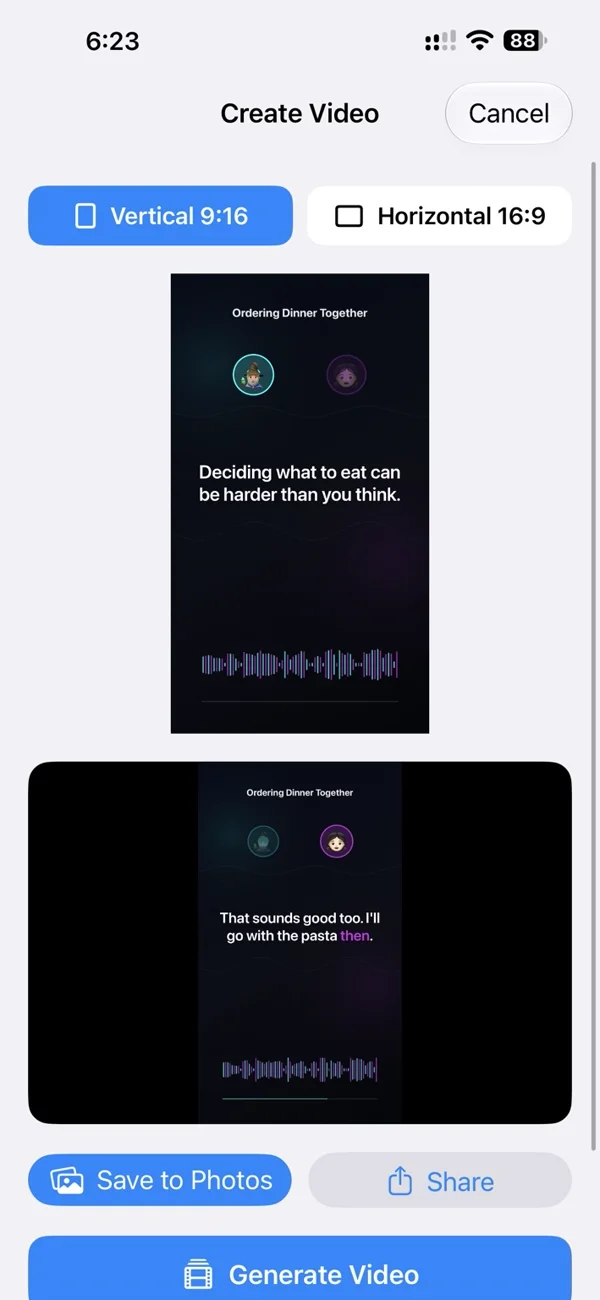
Two circular speaker portraits stay on screen. The speaking character’s portrait lights up, and the text changes to show the current passage. Within that passage, each spoken word changes color in time with the voice.
The portraits remain still; they do not move their lips. The result is a podcast-style video with speaker indicators and synchronized dialogue text.
In Ordering Dinner Together, a short opening leads into the conversation and a closing invitation ends it. Those lines are part of this example’s script.
Turn your dialogue into a video
1. Tap Create Video
After your dialogue audio has been generated, tap Create Video beneath the audio result. This opens the Create Video screen. You continue with the dialogue you have already made.
2. Choose vertical or horizontal
Vertical 9:16 is selected by default. Keep it for a portrait video, or select Horizontal 16:9 for a landscape video.
3. Tap Generate Video and play the result
Tap Generate Video. A spinning progress indicator appears while Tau34 creates the video.
When it is ready, a video player appears below the preview. Tap Play to hear the conversation and see the speaker portraits, changing passages and highlighted words together.
4. Save or share
Tap Save to Photos beneath the player to save the finished video to your iPhone’s photo library. Or tap Share to open the standard iPhone sharing options.
Questions about AI dialogue videos
Do I need to record myself or film two people?
The dialogue uses the two AI voices you selected when creating its audio. The video uses speaker portraits and your dialogue text.
Is this only for language lessons?
No. A listening-practice conversation is one example. A two-host discussion, a question-and-answer explainer or a story with two speaking characters can use the same workflow.
Does making the video publish a podcast?
These steps create and save a video file. They do not publish an episode to a podcast service. You decide where to share the finished result.
Do I have to generate the audio again?
No. Start with the dialogue audio already generated in Tau34, then tap Create Video. If you still need the audio, begin with the two-voice AI dialogue guide.
Have an idea for a short lesson, conversation or story? Create it with Tau34 on iPhone.