Text-to-Speech, AI Dialogue or Bilingual Video Cards: Which Should You Use?
Do you want to narrate a script, create a conversation for English practice or make a short vocabulary video with translations? Each task uses AI voices, but the finished materials serve different purposes.
Tau34 AI Video & Voice Studio has three sections for these jobs: TTS, Dialogue and Video Cards. Choose the section based on what your audience needs to hear or see.
Choose your starting point
| Mode | Output | Voices | Use it for |
|---|---|---|---|
| Text-to-Speech | Audio | One selected voice | Narration, explanations and listening passages |
| Dialogue Studio | Audio; optional vertical or horizontal dialogue video | One or two speaking characters | Conversations, role-plays, character narration and short podcasts |
| Bilingual Video Cards | Bilingual card video | A voice for each of the two languages | Vocabulary sets, everyday expressions and short learning videos |
Choose Text-to-Speech for a ready-written narration
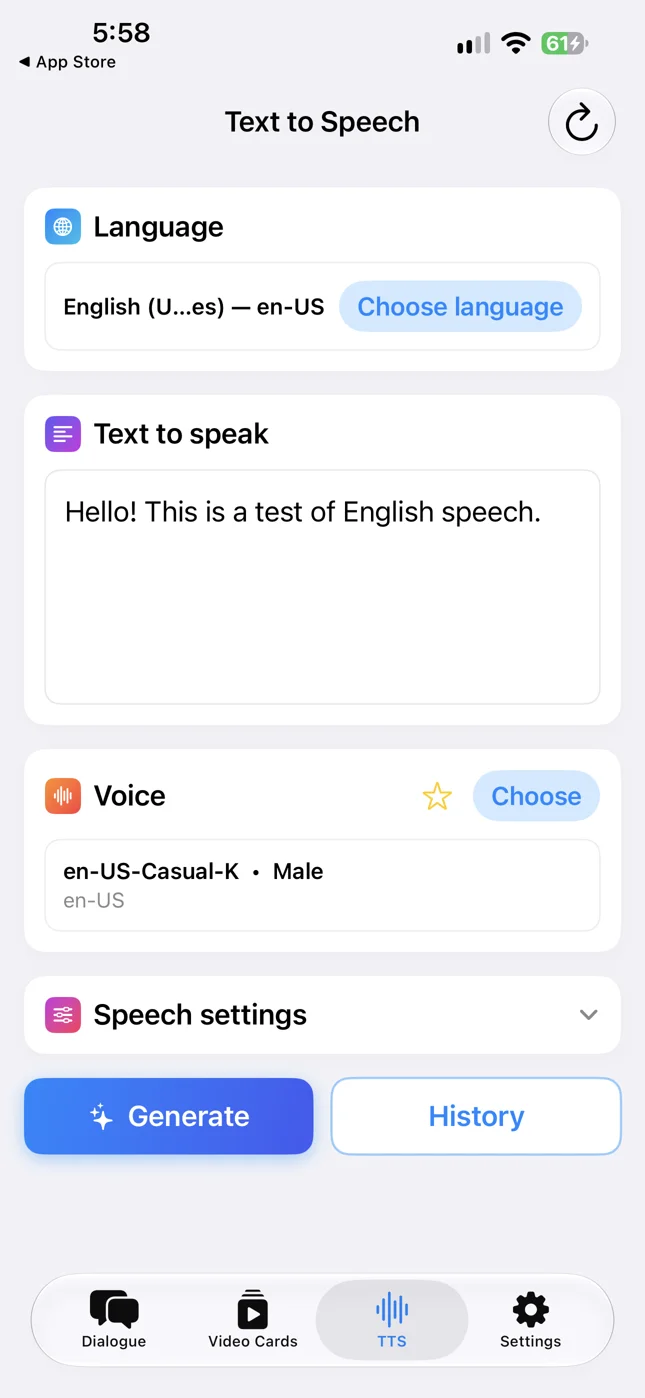
You already have your text: a lesson explanation, a short story, a welcome message or a voiceover script. You want an audio recording without recording your own voice.
Use Text to Speech, found in the TTS tab. Enter your text, choose a language and an available voice, then generate and save the audio.
This workflow suits lesson explanations, narration for a video you are editing, short listening passages and phrases you want to repeat. For example, a teacher could turn a short travel story into an audio passage and send it to students before class.
TTS offers a selection of voices for each language. It does not use Dialogue Studio’s Quick Presets or written delivery instructions. Choose it when you want to turn an existing script into speech using a selected voice.
Follow the guide to creating an AI voiceover on iPhone for the full workflow.
Choose Dialogue Studio for an exchange between characters
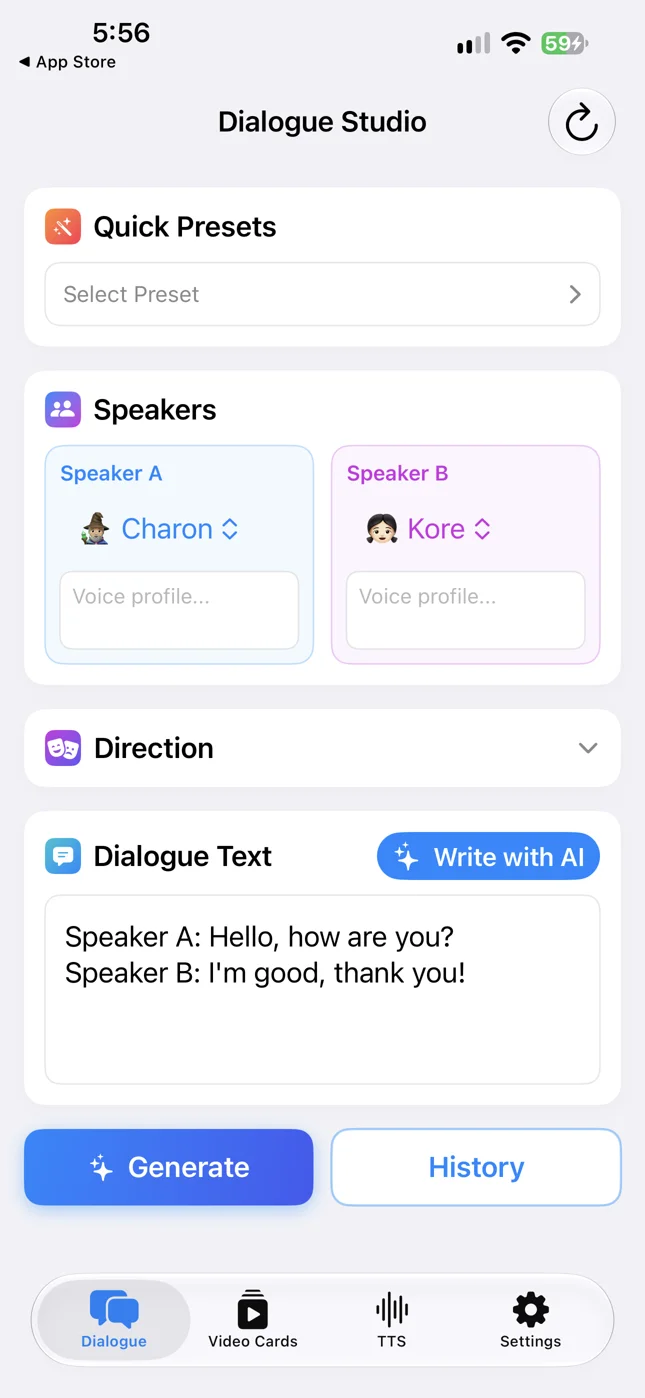
Some situations are easier to understand as a conversation: a guest asks a question and a receptionist replies; a customer explains a problem and a support agent proposes a solution; two characters discuss their plans.
In the Dialogue tab, Dialogue Studio lets you prepare a script or create one from a topic with AI Dialogue Writer, choose voices and generate conversation audio.
Use it for language-learning conversations, short audio podcasts, classroom role-plays or stories told through two characters. Before a trip, for example, you could create a hotel conversation. You hear the question about leaving bags, the reply and how the exchange ends.
Listen to the full conversation, repeat one character’s lines or use it in a lesson. Our English listening practice example includes real audio, a transcript and comprehension questions.
Dialogue Studio can also voice a script with just one speaking character. Its Quick Presets and written direction provide a different way to shape delivery from choosing a voice in TTS. This overview focuses on choosing a workflow; a dedicated guide will cover the single-character use case separately.
See how to create a two-voice AI dialogue on iPhone for the conversation workflow.
When you want the conversation on screen
Once the dialogue audio is ready, Create Video lets you turn it into a vertical or horizontal video.
Two circular speaker portraits appear on screen. The active speaker’s portrait lights up, text passages change as the conversation progresses, and spoken words are highlighted in sync with the voices. The portraits remain still.
You can use this format for short learning episodes on Reels, Shorts or TikTok, letting viewers hear the conversation while following its words.
The dialogue-to-video guide covers generating, playing and saving the result.
Choose Bilingual Video Cards for words and translations
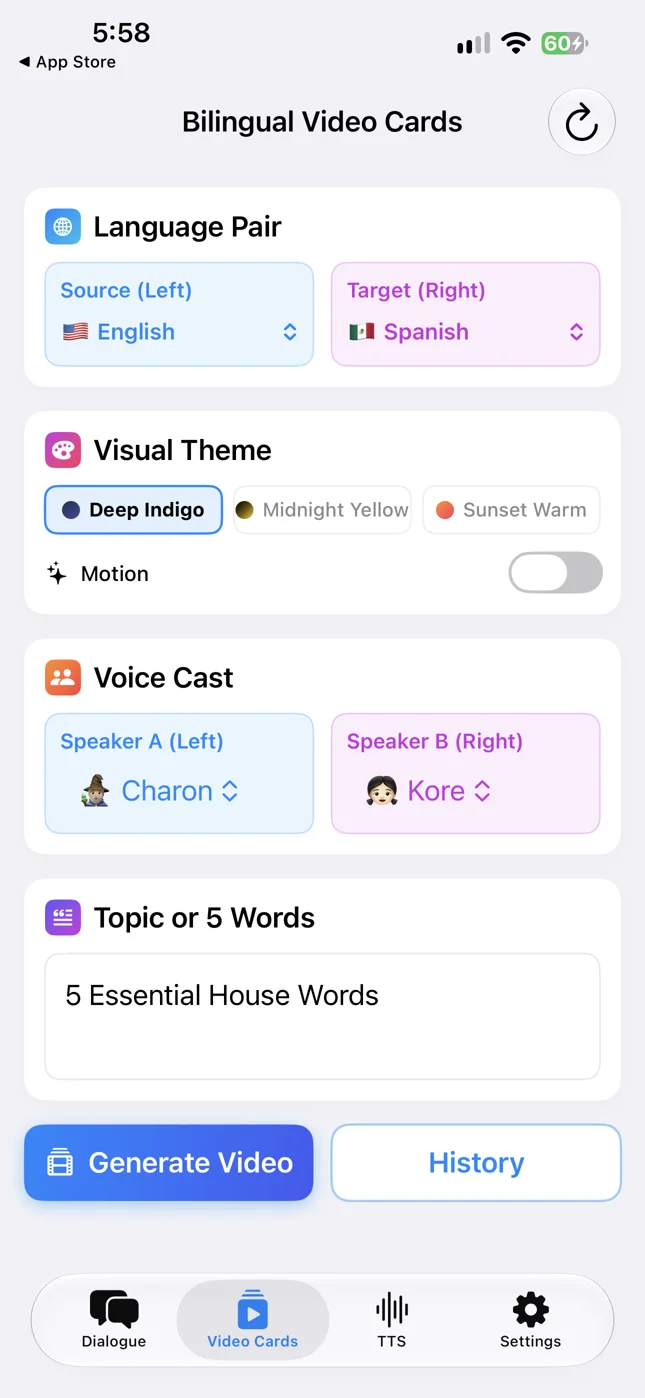
If your goal is to show a word or short phrase alongside its translation, use Bilingual Video Cards in the Video Cards tab.
This format is built around individual cards. Provide a topic or your own word list, choose two languages and create a video with text and speech in both languages.
For example, you could prepare five tableware words: plate, fork, spoon, knife and cup. Viewers see the words and translations in sequence, hear their pronunciation and can repeat them aloud.
Cards work well for themed vocabulary sets, everyday expressions and short lessons for your followers. A dialogue shows how people communicate; cards let learners focus on particular words and meanings.
See the bilingual vocabulary video guide for a real example and the creation process.
One topic can become several learning materials
You can use these formats together. Take the topic “At a café”:
- Video Cards: introduce the words and expressions needed to order.
- Dialogue: let learners hear an exchange between a customer and a staff member.
- TTS: prepare a separate explanation or short story on the same topic.
For your own listening practice, you might start with a conversation. For a vocabulary page, start with cards. If your script is already written and you need a narration, start with TTS.
Choose one specific task and make a short example in Tau34. You can then develop it into a lesson, an audio conversation series or a collection of learning videos.